Build a board from case files PRO
When a client hands over a folder of spreadsheets, documents and pictures, you can have the assistant turn it into a board: pick the files, say what you want out of them, and it builds the nodes and connections. Every node it makes links back to the file it came from.
Start it
- A new board: open the case and choose Build a board from case files under Boards.
- An existing board: in the case, use the ✦ button next to a board; or, with a board of the case open, the ✦ button next to the case name in the title bar.
The case needs its folders or files attached first (Files and folders in the case; see Cases).
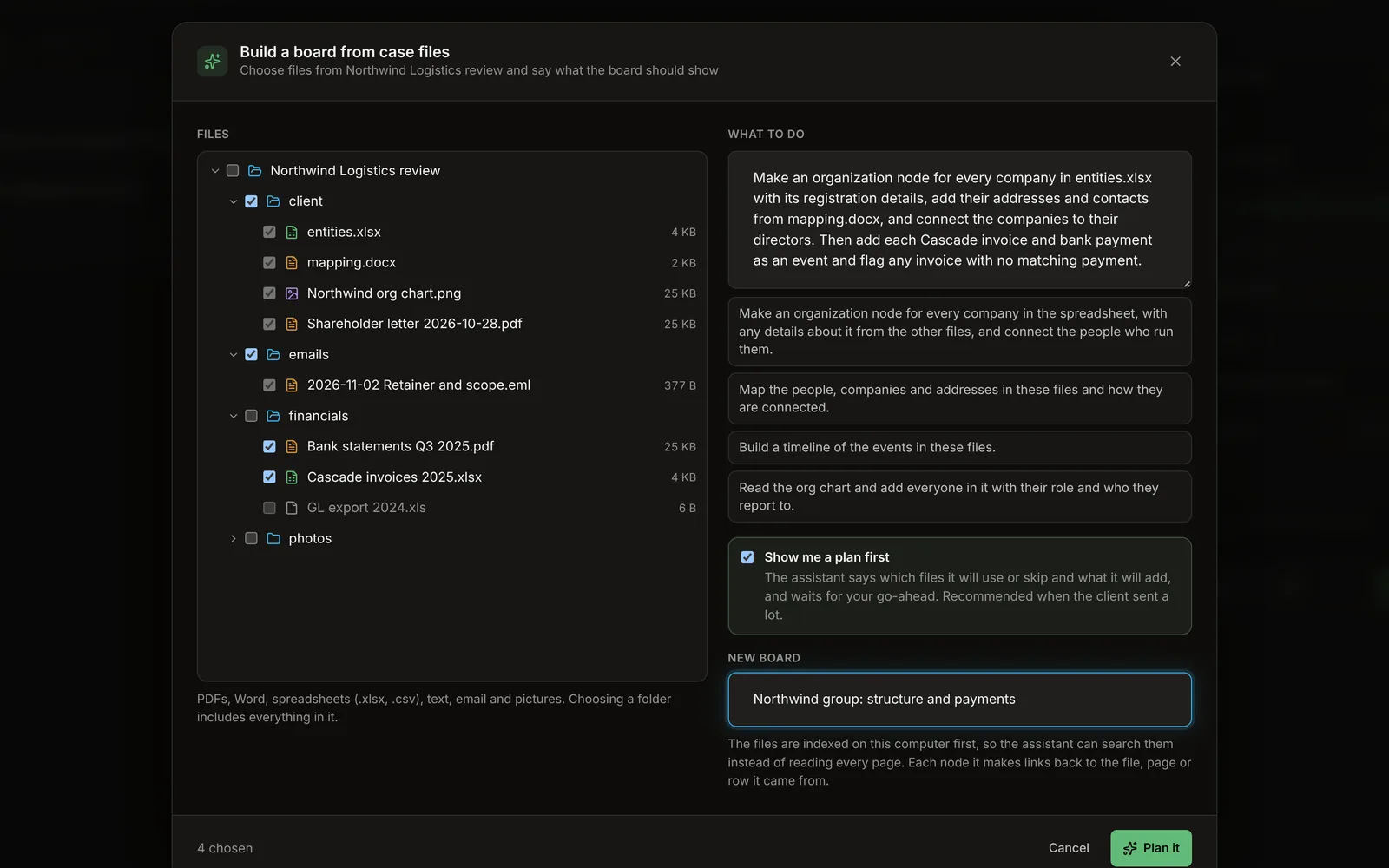
Choose the files
The left side lists the case's attached folders and files. Expand folders, and tick what to use. Ticking a folder includes everything in it. The assistant can read:
- Documents: PDF (with a text layer), Word (.docx), text, Markdown, HTML, email (.eml), JSON
- Spreadsheets: Excel (.xlsx), CSV and TSV
- Pictures: PNG, JPEG, WebP, GIF
Other files are greyed out.
Say what to do
Write what the board should show, as you would to a colleague, for example:
Make an organization node for every company in entities.xlsx with its registration details, add any addresses or contact details for it from mapping.docx, and connect the companies to their directors.
Some starting points are offered under the box. For a new board, you can also name it.
Plan first
Show me a plan first is on by default. With it, the assistant doesn't build anything at first. DeepState lists what's in each file on this computer (its kind and size, a spreadsheet's sheets, columns and first row, the opening lines of a document, a picture's size, and which files are exact duplicates), and the assistant replies with a short plan:
- the files it will use, grouped, and what each gives the board
- the files it will skip and why: duplicates, unrelated, empty, unreadable, nothing new
- what it will add: kinds of nodes, roughly how many, and the connections
- anything it needs from you
It runs in Plan mode, so it can peek inside a few files but can't change the board. Above the chat input, Review the plan waits for you: ask for changes or answer its questions in the chat, then choose Build it. × discards the plan. You can stop the assistant at any time, before or during the build.
This is worth it when a client sends a lot: a minute of planning avoids an hour spent on files that don't matter.
Untick it to build straight away.
Start
Choose Plan it (or, without a plan, Build the board / Add to the board). DeepState then:
- Indexes the files on this computer with the same local model as document folders. Files already indexed are skipped. Nothing leaves your computer for this step.
- Opens the board and gives the assistant the task, with the list of files.
The assistant works through it as in any chat, and you can watch, stop or follow up:
- it reads spreadsheets row by row (exactly, so no row is skipped)
- it searches the documents for what it needs instead of reading every page, which is faster, cheaper and more accurate on long files
- it looks at pictures and scanned PDF pages (an org chart, a scanned letter) when the model can see images. DeepState AI's models can; with your own provider, pick a model with vision
- it creates the nodes and connections, then links each node to its source file, page or sheet and row
Source files on nodes
Every node has a Source files section in its panel. Click a file to open it in its usual app, at the page or row noted beside it; the arrow shows it in its folder. Attach adds a file by hand, and × removes a reference (the file itself is not touched).
References sync with the board. Each computer finds the file again in the case's folders, even if they're in a different place (for example, a OneDrive folder under another user name). A file that isn't on this computer is marked Not on this computer.
Good to know
- The task message lists each file with an id; that's how the assistant refers to them. It's normal to see those ids in the chat.
- PDFs without a text layer (scans) can't be searched, but the assistant can still look at their pages one by one.
- Big folders take a while to index the first time. Later runs only index what changed.